


Best Forex VPS for Running 10–20 MT5 Terminals on a Single VPS in 2026 (Real Performance Test)
Find the best forex VPS for running multiple MT5 terminals. See real test results, CPU and RAM usage, EA impact, and how to choose the right Forex VPS configuration in 2026.
Quick Summary
Running 10–20 MT terminals on a single VPS in 2026 is feasible, provided you choose the right configuration for your VPS for trading or VPS for forex needs. The actual capacity depends on your EA complexity, chart count, market conditions, and several other factors.
✓ Feasible — Plenty of headroom for news events
✗ Nightmare — System becomes unstable, high risk of issues
The point: Same VPS, completely different outcomes. The variable isn't the hardware—it's your EA. This page shows you our test data, explains EA complexity, and helps you calculate your actual capacity.
What Determines How Many Terminals a MT5 VPS Can Run?
Six core factors determine your MT5 VPS hosting capacity. They amplify and constrain each other—not simple additions.
CPU Cores & Thread Performance
More cores improve parallel execution, but single EA performance isn't always linear. Virtual core quality depends on CPU architecture.
EA Complexity & Compute Density
The biggest variable when choosing MT5 hosting. Indicators, pairs, timeframes, orders multiply together—CPU differs 5-10x between lightweight and Grid EAs.
Memory Capacity & Chart Load
A typical MT5 terminal may consume a few hundred MB of RAM when idle, with additional usage from charts, indicators, and historical data. Actual usage varies significantly depending on configuration.
Market Activity & Tick Density
News events can spike tick frequency 5-10× with CPU peaks. Plan for peaks, not just averages.
Disk I/O & Data Writes
MT5 stores terminal files, history data, logs, and profiles locally. Storage requirements grow with symbols, historical data, and testing activity. I/O bottlenecks on HDD can impact performance—SSD is recommended.
Network Quality & Broker Latency
Order latency depends on network distance to brokers. Locating your VPS close to your broker's trading server can significantly reduce network latency. Depending on the route, improvements can range from a few milliseconds to hundreds of milliseconds—critical for high-frequency EAs.
Important limitation: Our EA multipliers (8× for commercial EAs, 12× for Grid EAs) are empirical estimates based on industry experience, not measured standards. Your actual EA may consume significantly more or less CPU depending on its specific indicators, currency pairs, and trading logic. Always test with your own EA.
Trading risk disclaimer: VPS performance ensures stable EA execution environment, but cannot improve a poor trading strategy. Better hardware ≠ profitable trading. Always test your EA's strategy performance separately from infrastructure concerns.
Test Machine and Environment
72-hour live market test on a real Windows VPS. This VPS MetaTrader 5 environment represents typical terminal capacity conditions.
Test Machine Specifications
| Component | Specification |
|---|---|
| CPU | 16 Cores |
| RAM | 32 GB |
| Storage | 400 GB SSD |
| OS | Windows Server 2022 |
| Platform | MetaTrader 5 |
| Component | Specification |
|---|---|
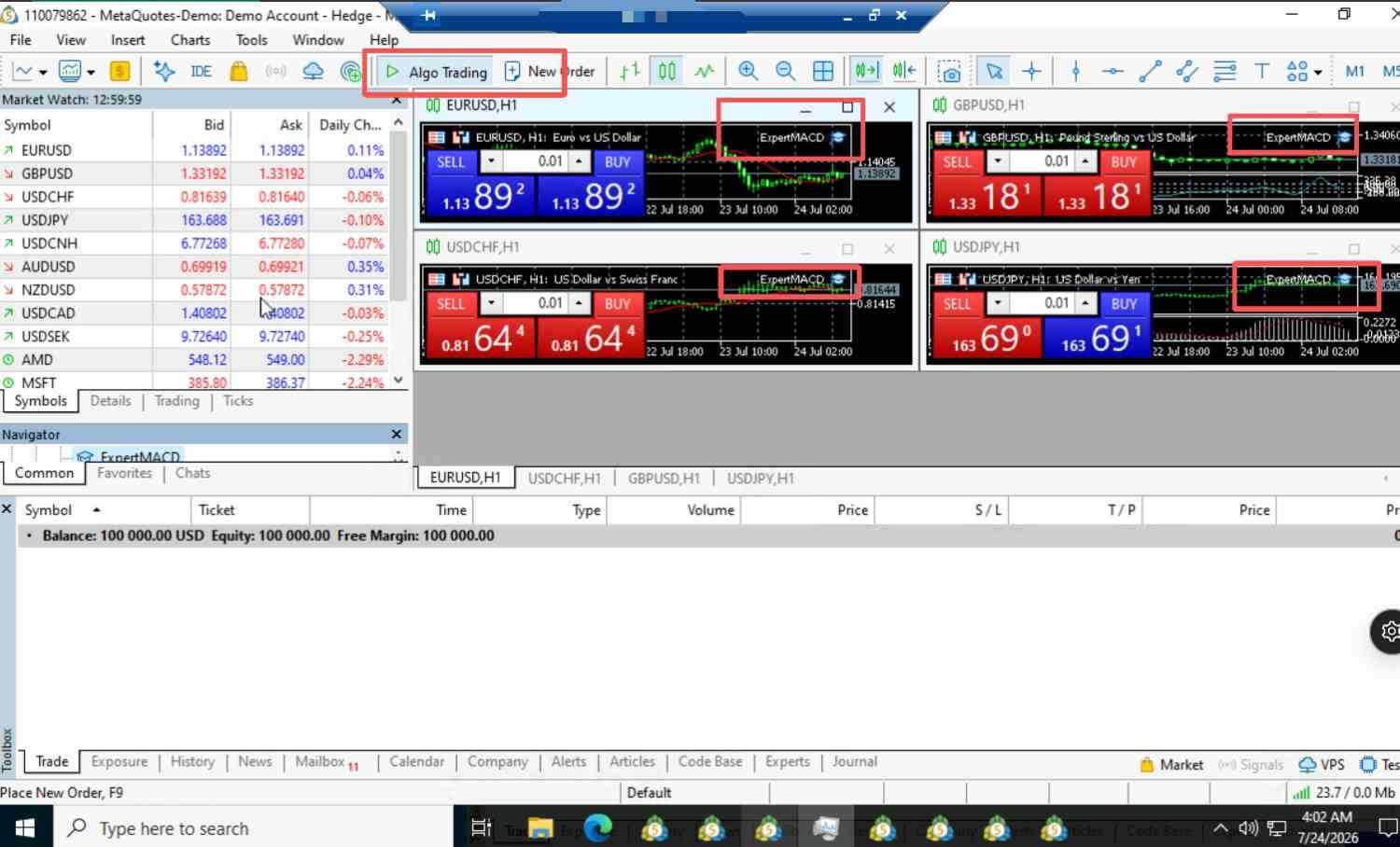
| Terminal Count | 12 Independent Instances |
| EAs per Terminal | 4 EAs |
| Total EAs | 48 EAs |
| Test Duration | 72 Hours |
| Market Data | Live (Not Simulated) |
Why MACD Sample EA?
MetaQuotes' official EA—reproducible by anyone. Commercial EAs have too many variables to standardize.
Test Results, Limitations, and Analysis
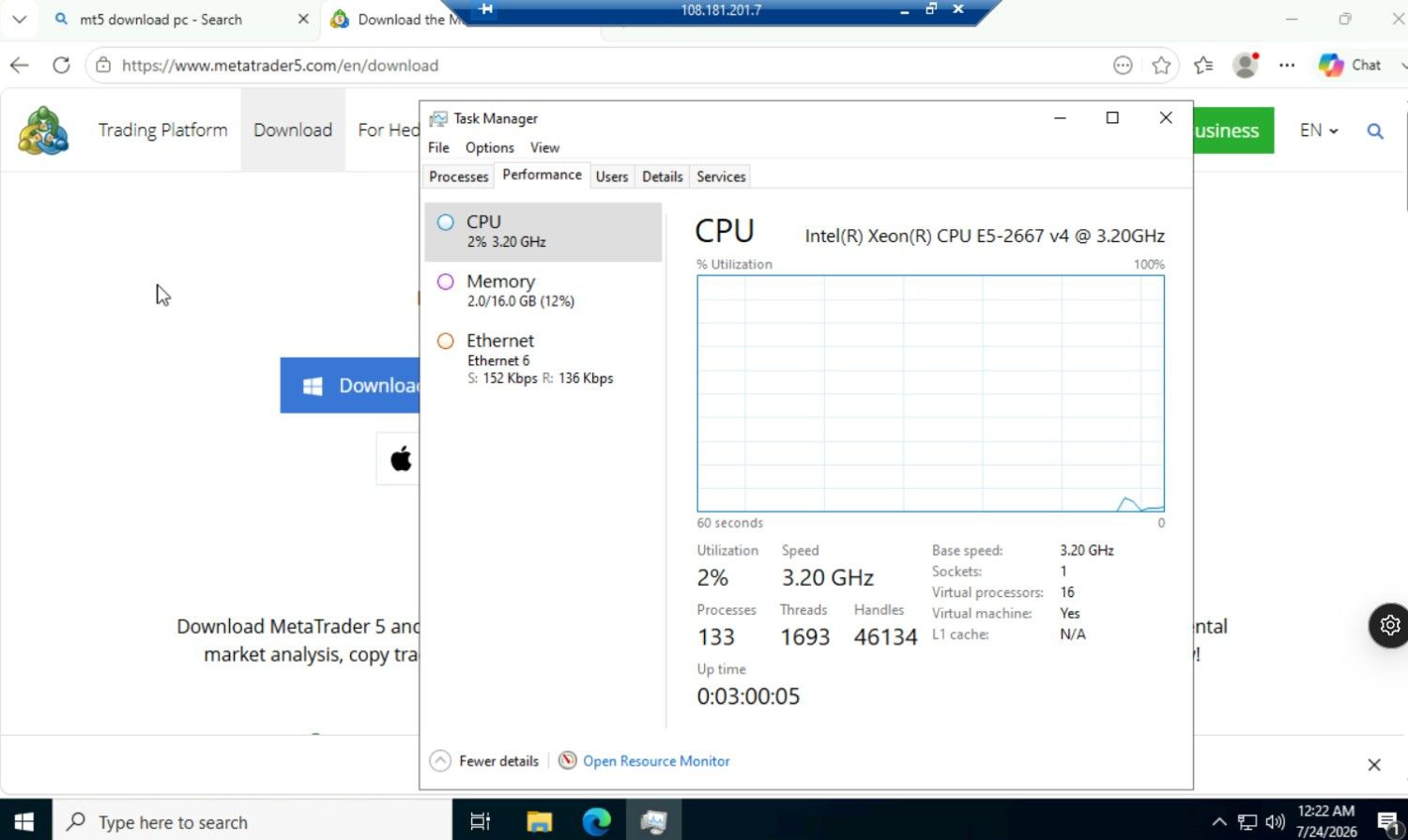
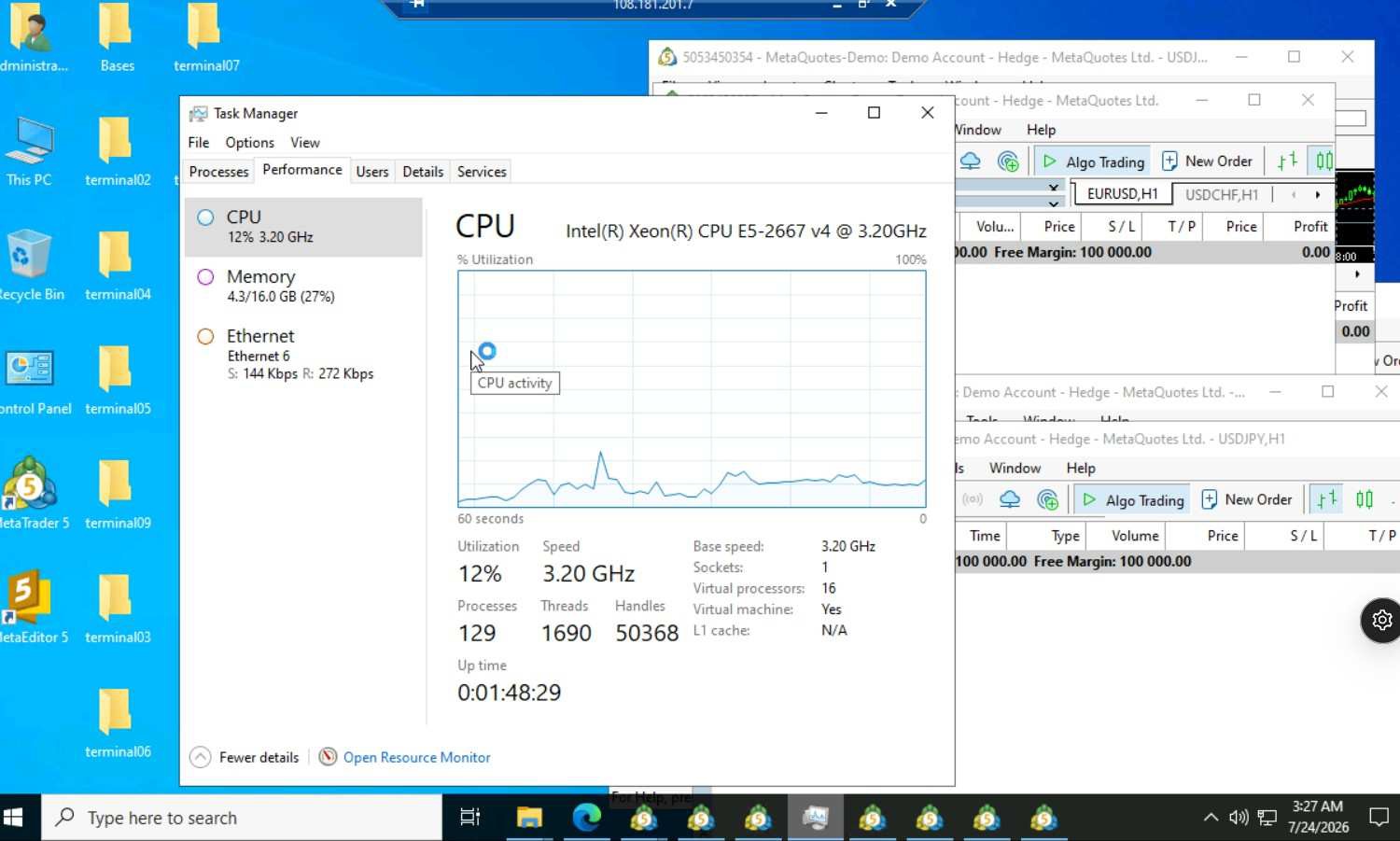
72-hour test: 15% CPU, 30% memory with 48 EAs. Actual results, limitations, and why numbers appear low.
72-Hour Test Results
Test Limitations
Understanding what our data does and doesn't represent:
Key Limitations
- We only tested one hardware configuration (16 cores / 32 GB)—results don't linearly scale to other specs.
- We only used lightweight MACD Sample EAs. Your commercial EA may consume 2-10× more CPU.
- 72 hours is one market sample, not a statistical guarantee across all conditions.
- Numbers are 72-hour averages. Peaks during news events can be 2-3× higher.
- MT5 Strategy Tester / Optimization is a completely different workload—our conclusions do not apply.
Why Resource Utilization Is So Low
Why resource utilization is so low:
Minimal EA with basic indicators. Commercial EAs consume 2-8× more CPU.
72 hours is limited. Long-term cache growth and tick density variations weren't captured.
Key Takeaway: Use our 15% CPU baseline, multiply by your EA's complexity factor. Commercial EAs typically require 6-12× more resources.
Next: EA complexity—the biggest factor affecting your actual resource consumption.
Why Your Numbers May Differ Significantly from Our Baseline
We used lightweight EAs; you're likely using commercial MT5 EA solutions. The CPU gap can reach 10×—essential for estimating your capacity.
Why Is the CPU Gap So Large?
Each tick, EAs recalculate all indicators. Four variables multiply together:
| Variable | Sample EA | Typical Commercial EA | Heavy Grid EA |
|---|---|---|---|
| Number of Indicators | 1–2 | 5–10 | 15–20+ |
| Currency Pairs Scanned | 1 | 1–3 | 10–28+ |
| Timeframes Analyzed | 1 | 1–3 | 4–5+ |
| Orders Managed Simultaneously | 1–2 | 2–5 | 10–50+ |
EA scanning 20 pairs, 4 timeframes, 30 orders = 10–15× MACD Sample per tick. Averaged over calm markets, sustained CPU typically 3–6×.
Why Is the Memory Gap Much Smaller?
Memory's bulk is in MT5 terminal overhead, not EA complexity:
Commercial EAs can double CPU, but memory typically only increases 20–30%. CPU is your real bottleneck.
Use the calculator below to estimate your terminal capacity. For your EA's actual multiplier, use our self-test method.
Calculate How Many Terminals Your Configuration Can Run
Based on our 72-hour test data and market experience, this estimation tool is for reference only. Your actual results vary based on daily usage, EA complexity, chart count, cache, and usage duration. Self-test your real data below.
Estimated Relative CPU Impact (Non-standardized)
| EA Type | Typical CPU Range | Common Characteristics | Min Config (1 Terminal) |
|---|---|---|---|
| Official Sample | 1–2× | Basic indicators (MA, MACD), single pair | 2 Cores / 4 GB |
| Commercial EA | 6–10× | 5–10 indicators, trend strategies | 2 Cores / 4 GB |
| Heavy Grid/Multi-symbol | 10–16×+ | Multi-symbol scanning, grid, martingale | 3 Cores / 4 GB |
| These ranges are illustrative estimates, not industry benchmarks. | |||
⚠️ Trading risk note: VPS capacity only affects execution stability. It does not reduce the inherent risks of grid or martingale trading strategies.
Capacity Planning Principles
📊 Note: This is just an estimate—actual usage may vary. We recommend testing with VPS providers that offer 1-day free trials before committing. VPS Mart provides a 1-day free trial. Contact us to learn more about free trials on the best forex vps.
How to Measure Your Configuration's Real Data
Estimation is the starting point; testing is the answer. Get your accurate data using Windows Task Manager—no additional tools needed.
Build Your Test Environment with Your Actual EA
Don't use Sample EA—mount the EA you'll actually run, connect to a broker demo account, and run on your target VPS. Lightweight vs Grid EA consumption is hardly comparable.
Monitor for 48–72 Hours, Recording Averages and Peaks
Open Windows Task Manager—check CPU/memory averages and peaks in Performance tab; check individual MT5 process usage in Details tab. Averages determine daily load, peaks determine risk margin.
Cover High-Volatility Periods
Test during high-volatility periods (major news releases). Tick volume spikes, all EAs recalculate simultaneously, order management triggers. Resource peaks here are critical.
Calculate Your EA Multiplier, Determine if Configuration Is Sufficient
Compare CPU usage per terminal under similar hardware conditions. Calculate: CPU per terminal = Total CPU usage / number of terminals. Compare this to our baseline (~1.25% per terminal with lightweight EAs) to estimate your EA's relative resource impact:
Configuration Ample
Sufficient headroom to add terminals or switch to more complex EAs—no immediate upgrade needed.
Approaching Reasonable Limit
Near safety boundaries. Reduce terminal count, simplify EA config, or upgrade CPU. Don't increase load.
Horizontal Scaling Required
Single machine is no longer optimal. Distribute terminals across multiple VPS—more stable and maintainable.
How to Optimize a VPS for Multiple MT5 Terminals
After determining VPS configuration and terminal count, proper optimization makes your system more stable and efficient.
In MT5 terminal, go to "Tools → Options → Updates" and uncheck "News" and "Allow auto-update." Auto-updates consume bandwidth and CPU—can cause terminal lag during critical moments.
In "Tools → Options → Charts," set "Max bars in history" to 10000-20000 to avoid unlimited growth. Reduce historical data subscriptions—keep only instruments you trade.
In "Tools → Options → Notifications," disable alerts you don't need. Each notification triggers network requests and may interrupt EA execution—critical for high-frequency strategies.
Each MT5 instance can run in portable mode (use /portable flag). Isolates configuration and data, avoids profile conflicts, makes backup easier—critical for multiple terminals.
Set Windows power plan to "High Performance." Prevents CPU frequency scaling, ensures consistent performance—critical for VPS where power saving is irrelevant.
Disable Windows Update, search indexing, and unnecessary visual effects. Background activities consume CPU and disk I/O—critical resources for MT5.
Summary: These optimizations reduce background interference. For trading VPS: "less background activity, more predictable performance."
Frequently Asked Questions
Common questions about running multiple MT5 terminals on a single VPS.
Yes, MT4 and MT5 can coexist on the same VPS. However, keep in mind that they are separate platforms and each instance consumes resources independently. If you plan to run both, account for the resource requirements of each platform type in your capacity planning.
Custom indicators can significantly increase CPU usage, especially if they perform complex calculations. The impact varies widely—some custom indicators are lightweight, while others are extremely compute-intensive. Always test with your actual custom indicators to get accurate resource measurements.
Warning signs include: CPU consistently above 70%, memory usage above 80%, terminal lag or freezing during high volatility, missed trade executions, or Windows becoming unresponsive. If you observe these symptoms, you need to reduce load or upgrade your VPS. VPS Mart provides add-on options, or you can directly upgrade to a higher-tier plan with minimum downtime.
Yes, you can use remote desktop to check Task Manager, or use monitoring tools that send resource usage alerts via email or mobile app. Many VPS providers also offer built-in monitoring dashboards. Set up alerts for CPU above 70% and memory above 80% to catch issues before they impact trading.
Ready to Deploy Your MT5 Trading Infrastructure?
Choose the best VPS for trading or VPS for MetaTrader configured for your specific EA requirements. Start with our baseline recommendations and scale based on your actual testing results.